
PDF Generation Template Editor
Open-source visual PDF generation engine with customizable templates and developer-friendly APIs.
The perimeter and area measurement tools can be used to measure the perimeter and area of the graphic area selected by the user.
There are three types of perimeter and area measurement tools: rectangular measurement tools, polygonal measurement tools, and circular/elliptical measurement tools.
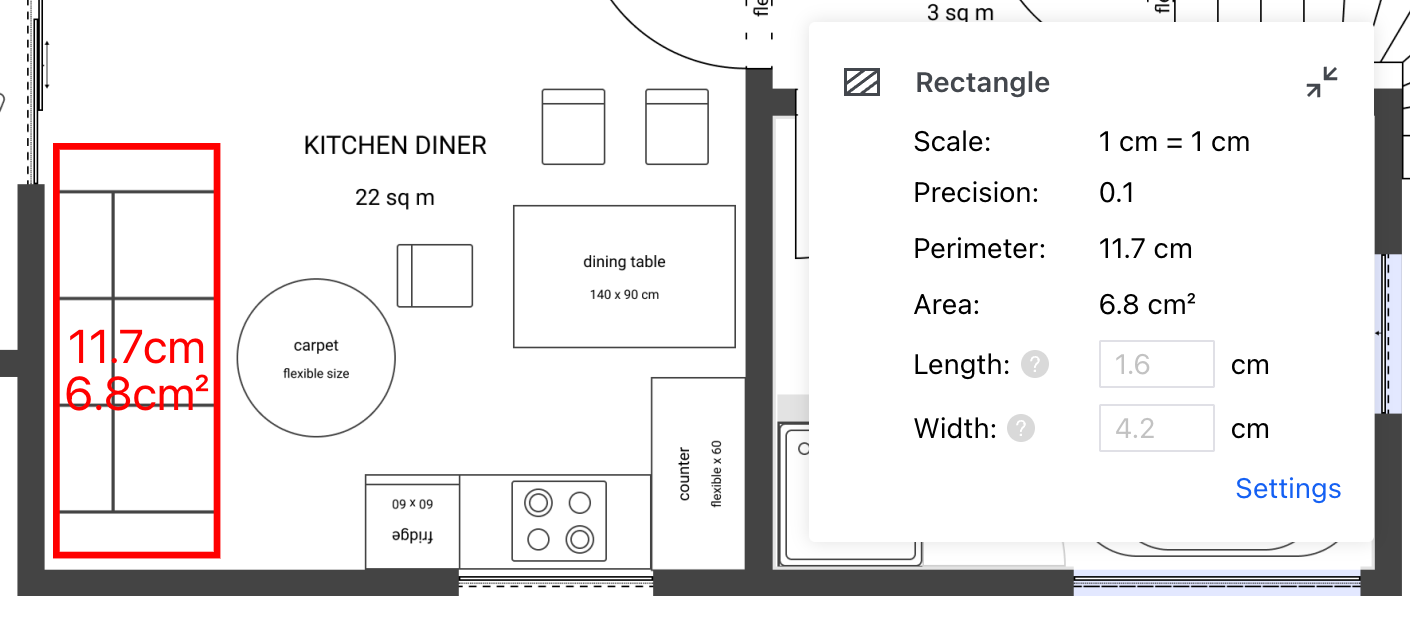
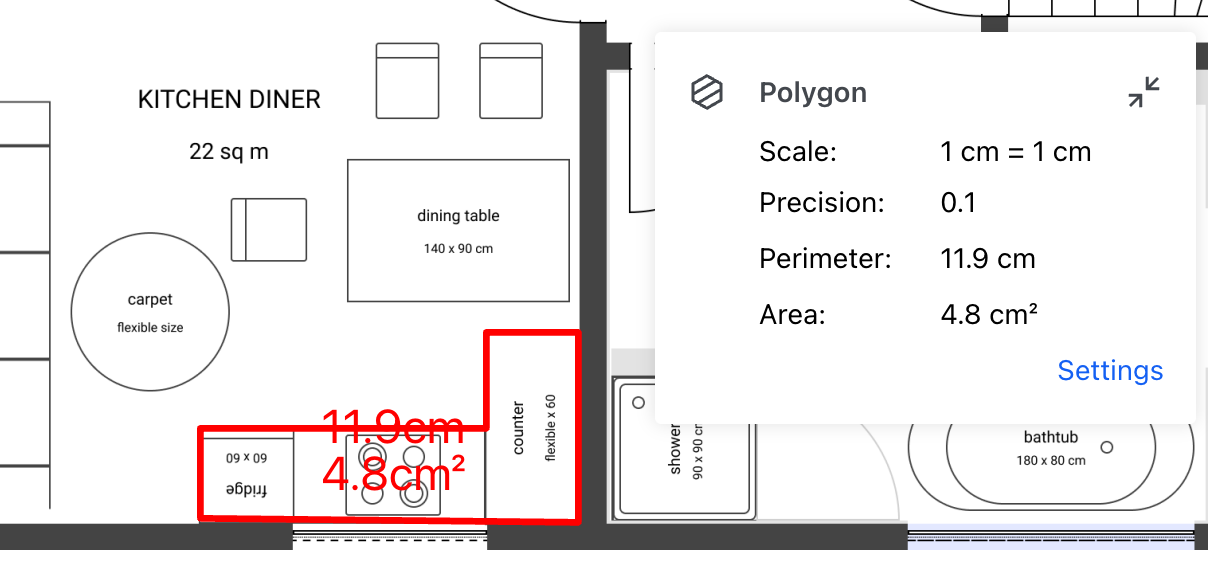
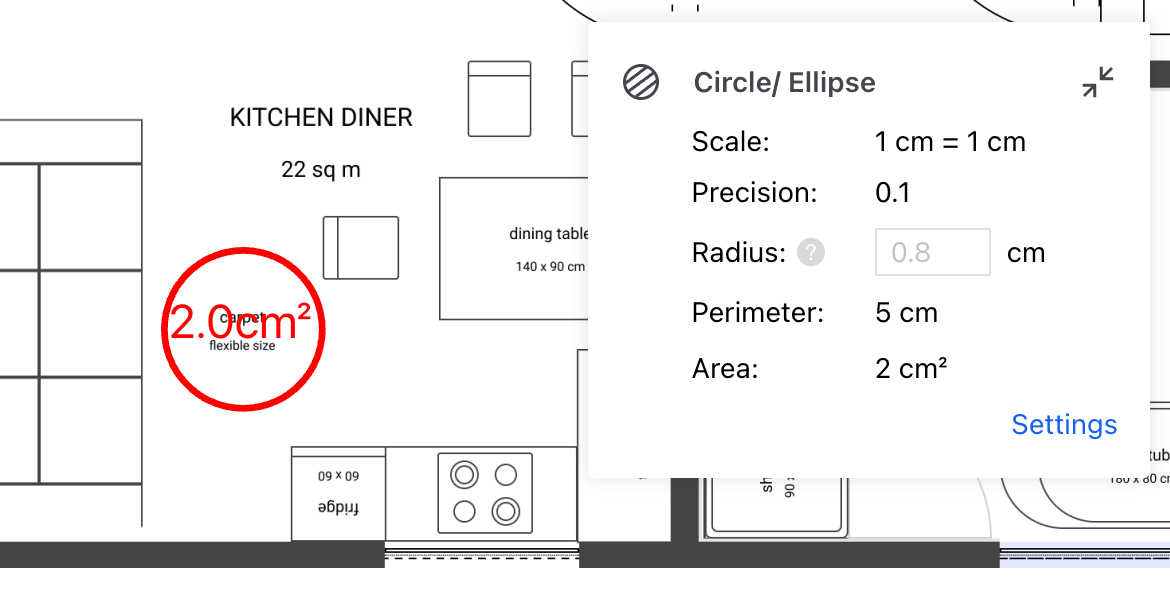
After configuring the measurement properties, you can create perimeter and area measurement annotations by following these steps:
rectangleCreateTool; if creating a polygonal measurement, use polygonCreateTool; if creating a circular/elliptical measurement, use circleCreateTool), and attach the default properties to the measurement annotation when creating. Create a measurement annotation using the createMeasurementAnnotation method of the annotationManager class.The following is an example code for creating a rectangle measurement annotation:
ComPDFKitViewer(...)
  .then(instance => {
    const { docViewer, UI } = instance;

    docViewer.addEvent('documentloaded', async () => {
        // Enter the rectangle measurement annotation creation mode.
        UI.setToolbarGroup('toolbarGroup-Measurement');
        UI.setActiveTool('measureRectangle');

        // Set default measurement properties for the annotation.
        const defaults = docViewer.pdfViewer.measurementTool.rectangleCreateTool.defaults;
        const defaultStyles = docViewer.pdfViewer.measurementTool.rectangleCreateTool.defaultStyles;

        const annotationData = {
            measure: 1,
            type: 'rectangle',
            measureType: 'area',
            pageIndex: 0,
            rect: {
                left: 200,
                top: 350,
                right: 360,
                bottom: 460
            },
            vertices: [
                { x: 200, y: 350 },
                { x: 360, y: 350 },
                { x: 360, y: 460 },
                { x: 200, y: 460 }
            ],
            ...defaults,
            ...defaultStyles
        };

        // Create a measurement annotation.
        const annotation = await docViewer.annotationManager.createMeasurementAnnotation(annotationData);
        // Render the annotation.
        docViewer.annotationManager.drawAnnotationsFromList(annotation);
});The following is an example code for creating a polygon measurement annotation:
ComPDFKitViewer(...)
  .then(instance => {
    const { docViewer, UI } = instance;

    docViewer.addEvent('documentloaded', async () => {
        // Enter the polygon measurement annotation creation mode.
        UI.setToolbarGroup('toolbarGroup-Measurement');
        UI.setActiveTool('measurePolygon');

        // Set default measurement properties for the annotation.
        const defaults = docViewer.pdfViewer.measurementTool.polygonCreateTool.defaults;
        const defaultStyles = docViewer.pdfViewer.measurementTool.polygonCreateTool.defaultStyles;

        const annotationData = {
            measure: 1,
            type: 'polygon',
            measureType: 'area',
            pageIndex: 0,
            rect: {
                left: 114,
                top: 302,
                right: 310,
                bottom: 447
            },
            vertices: [
                { x: 156, y: 328 },
                { x: 230, y: 302 },
                { x: 300, y: 362 },
                { x: 310, y: 436 },
                { x: 180, y: 447 },
                { x: 114, y: 395 }
            ],
            ...defaults,
            ...defaultStyles
        };

        // Create a measurement annotation.
        const annotation = await docViewer.annotationManager.createMeasurementAnnotation(annotationData);
        // Render the annotation.
        docViewer.annotationManager.drawAnnotationsFromList(annotation);
});The following is an example code for creating a circle measurement annotation:
ComPDFKitViewer(...)
  .then(instance => {
    const { docViewer, UI } = instance;

    docViewer.addEvent('documentloaded', async () => {
        // Enter the circle measurement annotation creation mode.
        UI.setToolbarGroup('toolbarGroup-Measurement');
        UI.setActiveTool('measureCircle');

        // Set default measurement properties for the annotation.
        const defaults = docViewer.pdfViewer.measurementTool.circleCreateTool.defaults;
        const defaultStyles = docViewer.pdfViewer.measurementTool.circleCreateTool.defaultStyles;

        const annotationData = {
            measure: 1,
            type: 'circle',
            measureType: 'area',
            pageIndex: 0,
            rect: {
                left: 200,
                top: 140,
                right: 367,
                bottom: 308
            },
            ...defaults,
            ...defaultStyles
        };

        // Create a measurement annotation.
        const annotation = await docViewer.annotationManager.createMeasurementAnnotation(annotationData);
        // Render the annotation.
        docViewer.annotationManager.drawAnnotationsFromList(annotation);
    });